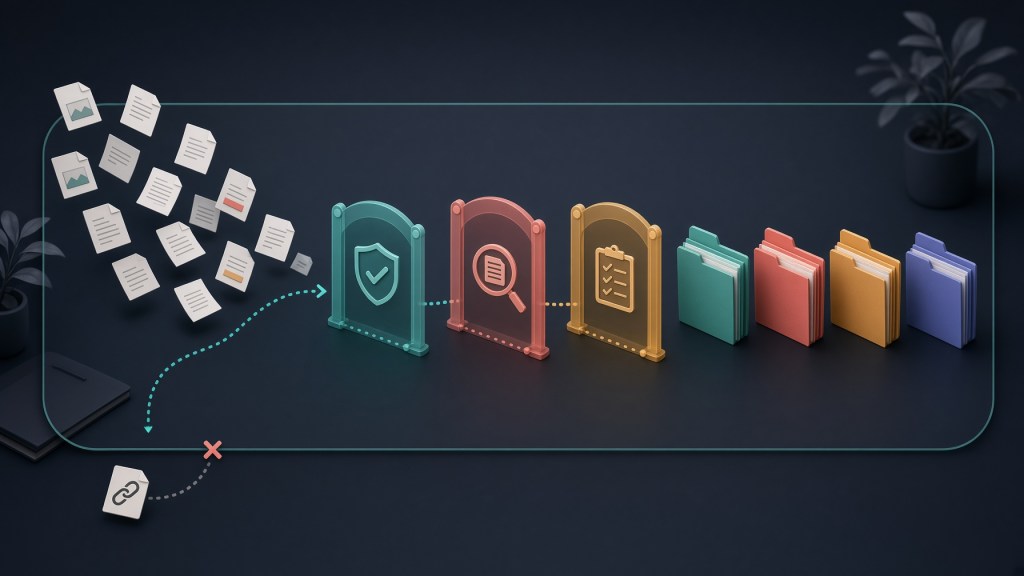
If your Downloads folder is a mess, should you hand the whole thing to Cursor? In this experiment, Cursor created a Python script that sorted ten synthetic files into Images, PDFs, Text, and Other folders. The generated script needed no code correction and placed all ten files correctly under this session’s rules. This session used five separate checks before treating the result as finished: practice folder → plan → preview → execution → verification.
This was not a usability test with a human beginner. Codex, an AI coding agent, operated one structured session on one Mac with synthetic files. The result does not show where every non-developer will get stuck. It shows the checks this session used before anyone should consider using real files.
In this article
1. Open a practice folder, not your originals
The experiment used no personal photos or work documents. Ten files with entirely fabricated contents were placed in an isolated workspace, and the session was opened on that workspace. Opening a real Downloads folder would also expand what the AI could read and where it could run commands. Cursor’s Agent overview says Agent can read and edit files as well as execute terminal commands.
For a first attempt, make a practice folder with five to ten copies.
2. Define what “organized” means in Plan Mode
The first request said to create a plan without changing files or running terminal commands. Cursor’s Plan Mode documentation describes this as the stage for examining a project, asking questions, and producing a reviewable plan before writing code.
The session did not treat selecting Plan Mode alone as an execution lock; the request separately prohibited file changes and terminal commands.
Cursor asked two questions:
- Should the result folders sit inside
inboxor at the top level of the workspace? - Should the extensionless
READMEandarchive.zipcount as Text or Other?
There is no single correct meaning of “organize my files.” You need to decide the destination, what happens to same-named files, how extensionless files are treated, and whether subfolders are included. This run kept the four result folders inside inbox, sent only .txt files to Text, and sent everything else to Other.
3. Read a dry-run preview before execution
After reviewing the plan, the session switched to Build—the mode in which Cursor may write and run code—but prohibited real moves. Cursor was asked to run only this preview:
python3 organize_inbox.py --dry-run
A dry run lists intended changes without making them. The output showed ten planned moves and one skipped symbolic link, a shortcut-style pointer to a file in another location. Same-named files would both survive with numeric suffixes, while README and the .zip would go to Other. An independent check confirmed that the target files had not changed.
A Delete attempted label briefly appeared beside the command. Its cause was not established, and no deletion occurred. Even so, a warning like this should not be dismissed merely because the model says everything is fine. Do not request the real move until you have checked what the label means against the actual file state; this session’s no-deletion conclusion came from an independent verifier. Explaining the source, destination, file count, and exclusions remains a separate check on the dry-run scope.
4. Confirm the scope, then run on the copies
The real command finished with exit code 0—a signal that it reported no error—moved ten files, and skipped one link. In this session Cursor was in Auto-review, a setting in which an automated classifier decides whether a command needs approval, and the command ran without an approval-button click. Cursor’s Run Modes documentation warns that Auto-review is not a security boundary and that its automated judgment can be wrong.
Do not rely on “Cursor will always ask if something is dangerous.” Treat sending the execution request as the approval, and check the dry-run scope first.
5. Verify the files, not the success message
Exit code 0 means the command ended without reporting an error. It does not prove that the files landed in the right places. A separate answer key and verifier checked that:
- all ten files appeared exactly once in the correct categories;
- all ten content hashes—fingerprints of file contents—were preserved;
- neither same-named file was overwritten;
- the deliberately placed marker file outside
inboxand its symbolic link remained unchanged; and - a second run moved zero additional files.
The verifier could not detect whether the symbolic-link target had merely been read. For ordinary use, you can still keep the originals, compare the preview and final file counts, and confirm that both same-named files remain. The actual file state—not Agent’s final sentence—should determine whether the task is complete.
A checking sequence for a similar practice run
- Create a practice folder with five to ten copies, not originals.
- In Plan Mode, say: “Plan only. Do not change files or run terminal commands.”
- Decide the destination, duplicate-name rule, extensionless-file rule, and subfolder behavior.
- Specify: “No overwrite or deletion; skip symbolic links.”
- In Build mode, request only the script and its
--dry-runpreview. - Check the source, destination, count, and excluded items.
- If the scope is correct, request one real run on the copies.
- Check the file count and confirm both same-named files remain, then repeat the dry run and confirm it plans no additional moves.
The experiment itself confirmed zero additional moves with a second real run. The advice above is narrower: a reader repeats the dry run instead of making an unnecessary second real run.
Reference: experiment conditions and technical limits
- Dates: synthetic session on September 2, 2026; official documentation rechecked on September 6, 2026
- Environment: Cursor 3.18.25,
Cursor Grok 4.6 Medium, Apple Silicon Mac - Login: the pre-sign-in attempt stopped at the
Log InandSign Upscreen and resumed in a separate session after the account owner logged in; the procedure and its duration were not measured - Result: five natural-language messages, two clarifying questions, zero code-correction requests, and zero functional errors
- Cursor-displayed Agent time: 8 minutes 31 seconds, excluding installation, account-owner login, and independent verification
- Verdict: first-run success for this ten-file synthetic test only; 10/10 classification and zero additional moves on the second run
.cursorignorecan exclude files from AI context, but it is not a boundary against terminal or external-tool access by Agent.- “Not used for training” under Privacy Mode does not mean “not transmitted.” This session did not measure whether Privacy Mode was enabled.
- A Checkpoint is a local restore point for Agent changes, not a complete backup or a replacement for Git, a version-control tool. This session did not test restoration.
This session needed zero code-correction requests, but checks still remained: isolate a small scope, read the plan, preview the change, and verify the actual files.
AI was used to assist with research and drafting. The author independently verified and edited the final article.


답글 남기기